
Product page SEO is what turns an ordinary e-commerce listing into a page that can rank, attract qualified shoppers, and convert search traffic into sales.
Product page SEO competes in some of the toughest search results online, often against marketplaces, major retailers, review sites, and Google’s own shopping features. That means every part of the page matters and needs optimization.
So, in this guide, I’ll walk you through the product page SEO strategies I use to improve e-commerce visibility and rankings. I’ll also show you how to optimize WooCommerce products step by step using AIOSEO.
Let’s start with a quick definition.
In This Article
- What Is Product Page SEO in WooCommerce?
- How to Set Up WooCommerce Product Page SEO
- 1. Write a Keyword-Focused Product Title
- 2. Add an SEO-Friendly Product Description
- 3. Choose a Clean, Optimized Product URL
- 4. Add Product Schema Markup
- 5. Optimize Product Images for SEO
- 6. Handle Product Variations Without Creating Duplicate Content
- 7. Use Breadcrumbs and Internal Links to Support Product Pages
- A Quick Checklist for WooCommerce Product Page SEO
- FAQs about WooCommerce Product Page SEO
- Next Steps
What Is Product Page SEO in WooCommerce?
Product page SEO in WooCommerce means optimizing each individual product page so it can rank in search results and turn visitors into buyers. It means making your pages easier for search engines like Google to find, understand, and rank. That includes writing a keyword-focused title and description, adding product schema markup, using a clean URL, and optimizing your images with alt text.
Think about it this way: your homepage tells Google what your store is about. Your product pages tell Google, and your customers, exactly what you are selling and why they should buy it from you instead of somewhere else.
Why Product Page SEO Is Different to Blog Posts
Blog posts answer a question. Product pages are built to sell something, so they need a different kind of optimization.
Product pages are often shorter, more repetitive across variations like size and color, and they need structured data to show up with rich results like star ratings and prices in Google.
If you treat your product pages like blog posts, you will likely miss the pieces that matter most here, like adding the right schema markup, clean URLs, and search-optimized images.
How to Set Up WooCommerce Product Page SEO
Now that you understand what product page SEO entails, let’s look at the best practices you can adopt for WooCommerce pages in WordPress and how AIOSEO can help.
1. Write a Keyword-Focused Product Title
Your product title is one of the first things Google and your customers see, so it needs to include your target keyword and make someone want to click.
A simple formula to follow is: primary keyword, plus a helpful detail, plus your brand name if it matters to your audience. For example, instead of “Blue Shirt,” try “Men’s Blue Cotton Button-Down Shirt, Slim Fit.” That title tells Google exactly what the product is and gives shoppers the details they are searching for.
Here are a few quick rules for product titles I swear by:
- Keep your most important keyword near the beginning of the title
- Include a detail that sets the product apart, like material, size, or use case
- Avoid stuffing in every keyword you can think of. 1 clear title beats 5 confusing ones
2. Add an SEO-Friendly Product Description
Your product description is where you get to sell the product, and it is also where many WooCommerce stores lose SEO value without realizing it.
Write a meta description that answers the questions a shopper actually has, like:
- What is it made of?
- Who is it for?
- What problem does it solve?
Work your primary keyword and a few related terms into the description naturally, the same way you would explain the product to a friend.
Also, try to avoid duplicate manufacturer descriptions. If you sell products from a supplier or manufacturer, it is tempting to copy their description straight into WooCommerce. I’d avoid doing this because when the same description appears on dozens of other stores selling the same product, Google has little to no reason to rank yours above the rest.
Optimize the Product SEO Title and Meta Description With AIOSEO
Open the WooCommerce product you want to optimize. Scroll down to the AIOSEO Settings section under Meta Boxes. Here, you can edit the SEO title and meta description that search engines may use when displaying your product in search results. AIOSEO integrates directly with WooCommerce for product SEO, extending controls to product categories, tags, and attributes.
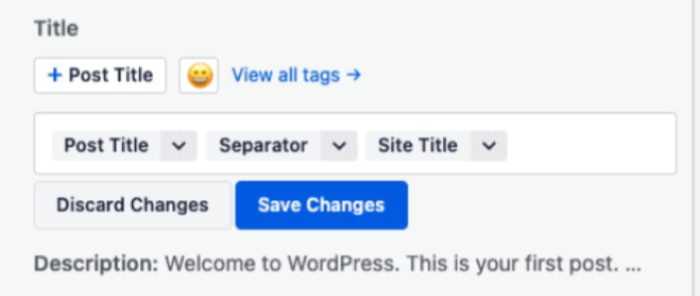
Your product title should describe exactly what you’re selling while naturally including the main phrase shoppers use to search for it. For this reason, the SEO title doesn’t have to match the visible WooCommerce product name. You can make it more search-friendly if need be. For the meta description, focus on what makes the product useful or distinctive.
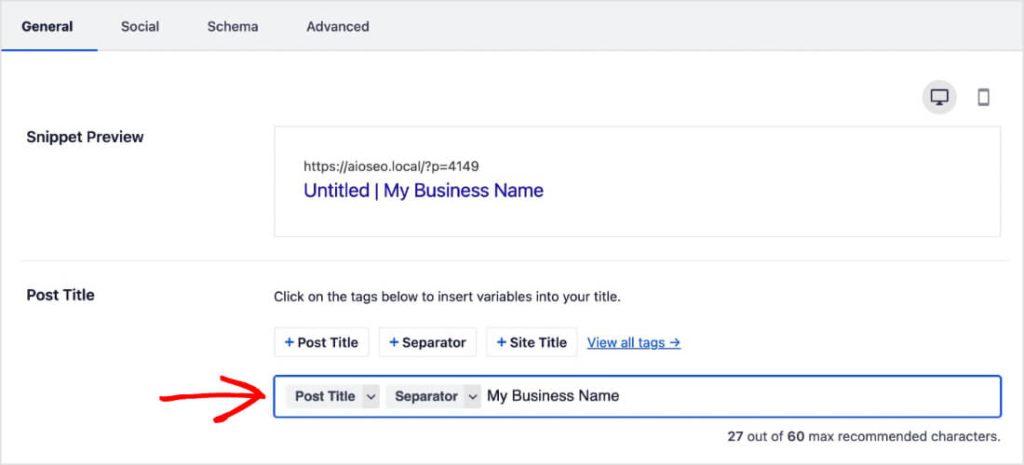
AIOSEO also supports Smart Tags, which are particularly useful for large stores because they let you automatically generate SEO titles and descriptions using dynamic information. You can also incorporate product attributes into titles or descriptions where appropriate.
3. Choose a Clean, Optimized Product URL
Your product URL, also called a slug, is a small detail that makes a real difference. A clean URL is easier for Google to understand and easier for shoppers to trust in search results.
By default, WooCommerce sometimes creates long URLs that include category names, extra words, or numbers. Edit your Permalink before you publish a product and keep it short, readable, and focused on your main keyword.
You can also do this quickly using AIOSEO from the right-side bar appearing on your individual product pages.
But if your product is already live and ranking, be careful before changing its URL. Editing the slug on a page that already gets traffic can cause you to lose your existing rankings if you don’t set up a proper redirect from the old URL to the new one.
4. Add Product Schema Markup
Schema markup is code that helps search engines understand exactly what is on your page, like a product’s price, availability, and rating. It’s one of the most overlooked parts of product page SEO and one of the easiest to fix with AIOSEO.
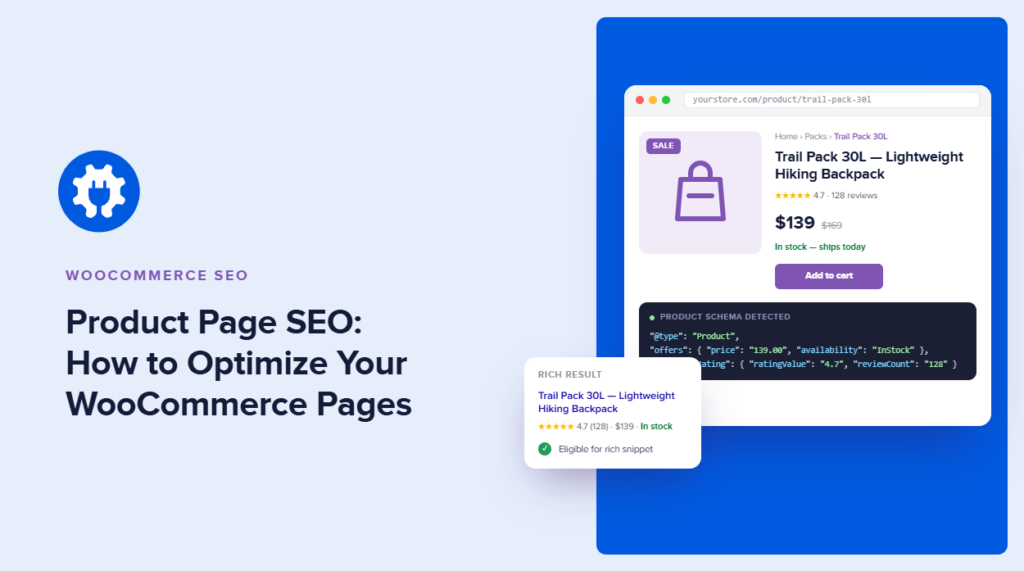
When you add product schema to a WooCommerce product page, you provide Google with structured details about the price, stock status, brand, and customer reviews. This lets your products show up with rich results in search, like star ratings and prices sitting right in the search listing. A result with stars and a price attached is easier for a shopper to compare at a glance than a plain text listing, which is exactly why it is worth setting up correctly.
How to Set It Up With AIOSEO’s Schema Generator
AIOSEO’s WooCommerce SEO module includes a Schema Generator that adds this markup for you, no coding required.
If you want to customize your product titles and descriptions further, you can also learn how to set up SEO titles and descriptions for your products or how to add product attributes to your titles automatically.
Here is how to set up the schema:
- Go to All in One SEO » WooCommerce in your WordPress dashboard
- Open the Schema tab
- Confirm that the product schema is enabled for your product pages
- Review the fields for price, availability, and brand to make sure they are pulling in correctly from your WooCommerce settings
- Save your changes
AIOSEO also updates the schema automatically as your prices, stock levels, and reviews change in WooCommerce, so you won’t manually re-save product pages every time something sells out or goes on sale.
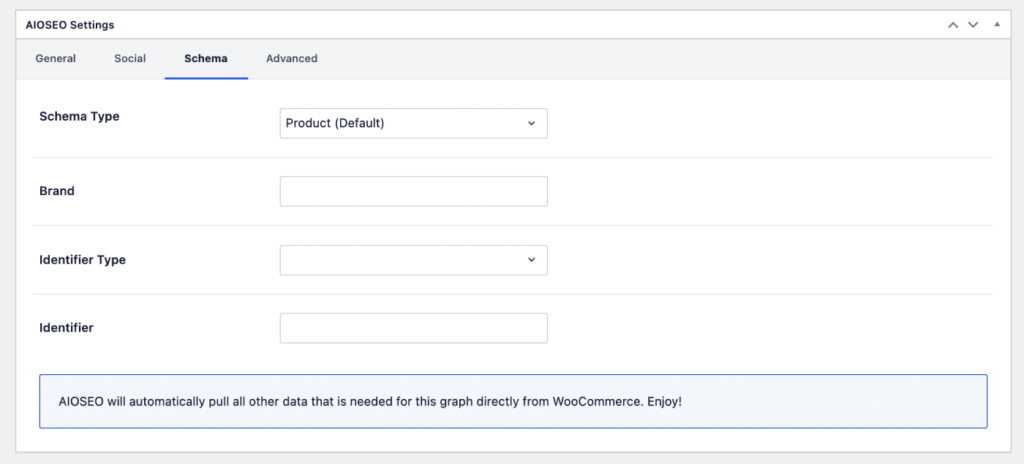
Shipping and returns can also strongly influence whether your customers make a purchase. And AIOSEO supports adding shipping details and merchant return policy information to WooCommerce Product schema. This gives search engines structured information about key purchase conditions. Make sure these details accurately match the policies displayed on the website. This is especially helpful for competitive products where shoppers compare several retailers selling similar items.
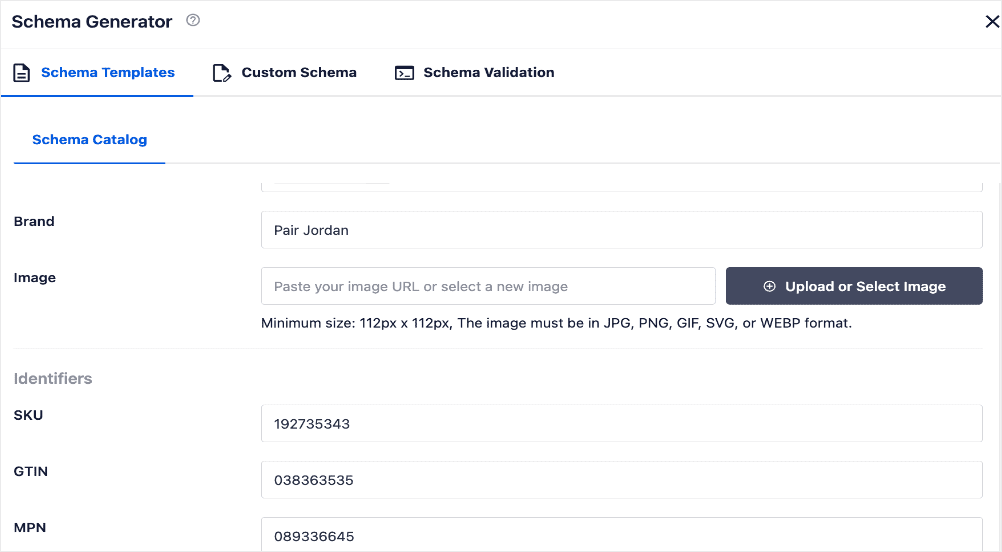
Also, turn on review schema too if you collect customer reviews. Review schema lets the star rating you see under some search results appear for your product, and it works alongside the product schema.
5. Optimize Product Images for SEO
Product images sell your products, and they can also bring in search traffic of their own through Google Images. That only happens if you optimize your images correctly.
Start by writing descriptive alt text. Instead of leaving it blank or writing something generic like “product1.jpg,” describe what is actually in the photo.
Alt text is a short description of an image that search engines read since they cannot see the image itself.
Also, compress images without losing quality. Large, uncompressed images slow your product pages down, and page speed is a ranking factor. So, I recommend compressing every product image before you upload it, and using a modern image format when your theme supports it.
While you’re optimizing images, rename the file itself to describe the image instead of something generic before you upload it. This takes a few extra seconds per photo, and it is easy to skip, but it adds up across a full catalog.
Optimize Your Product Images for Search With AIOSEO
If you have a large WooCommerce store, doing this manually for hundreds or thousands of product images can quickly become tedious. That’s where I recommend using AIOSEO’s Image SEO add-on.
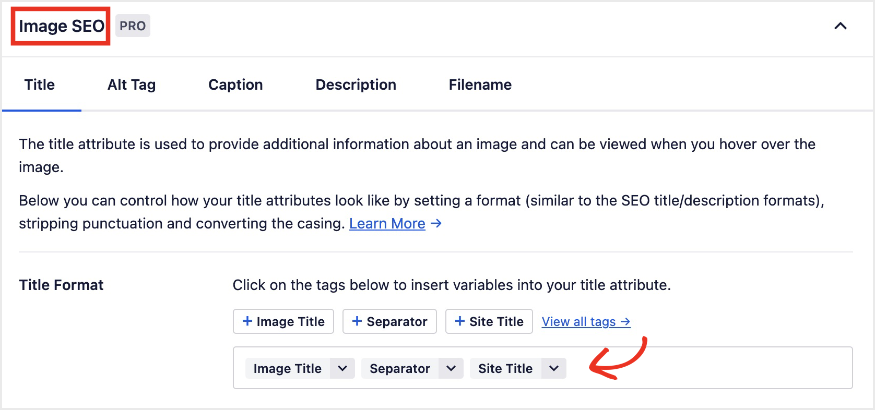
After installing the Image SEO add-on, go to All in One SEO → SEO → Search Appearance → Image SEO. Enable the feature to start configuring how AIOSEO handles your image attributes. AIOSEO can automatically optimize image titles, alt text, captions, descriptions, and filenames according to the rules you set.
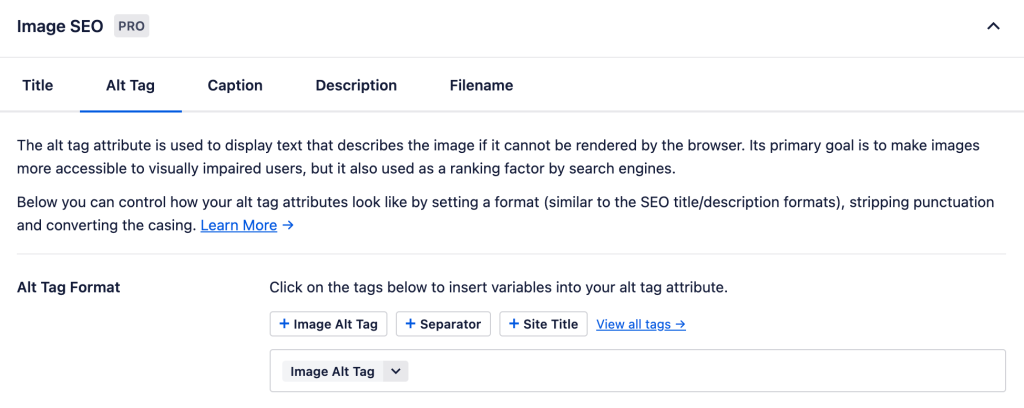
Next, configure how you want AIOSEO to generate alt text. The Smart Alt Tag Generator lets you create a template using Smart Tags. These dynamic tags can pull information from your content so you don’t have to manually enter the same information for every new image. This is especially useful for an ecommerce store where you’re continually uploading new product photography.
You can also create rules for image titles, captions, descriptions, and filenames. AIOSEO provides controls for formatting these attributes, including options for punctuation, casing, and removing unwanted words. For product images, this makes it easier to maintain consistent naming conventions across a large catalog instead of optimizing every image individually.
And if you have hundreds or even thousands of images, AIOSEO’s AI Bulk Actions work directly from the WordPress Media Library. Select the images you want to update, then use bulk actions to generate descriptive alt text for multiple images at once. This is one of the features I’d find particularly useful when optimizing an established ecommerce site.
6. Handle Product Variations Without Creating Duplicate Content
If you sell the same product in different sizes or colors, WooCommerce can sometimes create pages that look nearly identical to Google. This is a common reason product pages do not get indexed or ranked, and it catches a lot of store owners off guard.
To avoid this, make sure your variations share 1 canonical product page instead of generating separate indexable pages for every color and size combination, unless each variation genuinely has its own unique content and demand.
A canonical tag is a small piece of code that tells Google which version of a page is the “main” one when several pages have similar or identical content.
Where variations do need their own pages, write a unique description for each 1 instead of duplicating the same text across all of them.
If you notice product pages are missing from Google entirely, this duplicate content issue is one of the first things worth checking.
7. Use Breadcrumbs and Internal Links to Support Product Pages
Breadcrumbs are the small trail of links at the top of a page, like Home » Shirts » Men’s Blue Cotton Shirt. They help Google understand how your product fits into your site’s structure, and they help shoppers navigate back to a category if they are not ready to buy yet.
Breadcrumbs also give search engines another way to understand your ecommerce site hierarchy.
Using AIOSEO’s Breadcrumbs feature makes this relatively easy to set up. It creates breadcrumb navigation for your site and automatically adds the corresponding breadcrumb schema markup, giving search engines a machine-readable representation of the hierarchy.
To use it, enable breadcrumbs in AIOSEO. From your WordPress dashboard, go to All in One SEO → SEO → General Settings → Breadcrumbs and enable breadcrumbs.

You can then customize elements such as your separator, homepage link and label, breadcrumb prefix, and how breadcrumbs appear on different page types.
AIOSEO also gives you several ways to add the visible breadcrumb trail to WordPress. You can use the AIOSEO Breadcrumbs block in the Block Editor, a widget, a shortcode, or PHP code in your theme.

Make sure the trail reflects a useful product hierarchy. The categories in the trail should reflect how you actually organize your store.
AIOSEO also supports primary term selection, which can be particularly helpful when content belongs to multiple categories. This gives you more control over which category is represented in the breadcrumb path instead of allowing an unclear hierarchy to appear.
Beyond breadcrumbs, also link to important product pages from relevant blog posts, buying guides, and category pages whenever it makes sense. Together, breadcrumbs and contextual internal links help prevent important product pages from becoming isolated.
A Quick Checklist for WooCommerce Product Page SEO
If you’re updating a lot of products at once, it helps to have a short list to run through. So, here’s a quick checklist for you:
- Product title includes your keyword and 1 detail that sets it apart
- Product description is unique, not copied from a manufacturer
- URL, or slug, is short and includes your main keyword
- Product schema is enabled and pulling in the correct price, availability, and brand
- Review schema is turned on if you collect customer reviews
- Images have descriptive file names and alt text, and are compressed
- Product variations share 1 canonical page instead of creating duplicate content
- Breadcrumbs are enabled, and the page is linked from at least 1 relevant blog post or category page
FAQs about WooCommerce Product Page SEO
Start with keyword research to understand how shoppers search for the product. Then optimize the product title, SEO title, meta description, URL, images, headings, and product description. Add useful details such as specifications, reviews, FAQs, shipping information, and Product schema. Internal links from relevant categories and content can also help search engines discover and understand the page.
SEO is evolving, not dying. Traditional rankings still matter, but search now includes AI Overviews, shopping results, rich results, and other discovery experiences. For e-commerce sites, strong product content, structured data, technical SEO, and genuine usefulness remain important because these signals help search engines understand and surface products across different experiences.
The 80/20 rule suggests that a relatively small number of SEO activities often generate most of the results. For product page SEO, that usually means prioritizing high-value pages and focusing on fundamentals like search intent, unique product copy, strong titles, structured data, internal links, and technical indexability before spending time on minor optimizations.
Next Steps
WooCommerce product page SEO works best when you treat each listing as both a search result and a sales page.
Start with your highest-value products and review the search intent for each product, improve titles and metadata, and ensure search engines can clearly understand details such as price and availability.
For WooCommerce, using AIOSEO simplifies much of the technical work. Use its WooCommerce SEO integration to control titles and descriptions, then review Product schema to make sure your structured data accurately reflects what’s on the page. From there, expand your optimization to product categories, internal links, images, and related supporting content.
Remember, the goal isn’t simply to bring more searchers to a product page. It’s to bring the right shoppers to a page that gives them enough information to buy.
Disclosure: Our content is reader-supported. This means if you click on some of our links, then we may earn a commission. We only recommend products that we believe will add value to our readers.
Want to Try AIOSEO for Free?
Enter the URL of your WordPress website to install AIOSEO Lite.