
SEO is a never-ending to-do list.
You write content, build internal links, track keywords, audit your site, and so much more. Manually, these tasks can easily add up to 20+ hours every week.
But when you search “how to automate SEO” online, most guides will tell you the same thing: Go buy 5 different expensive tools, connect them with a complex AI, and then find the time to do it all.
That's terrible advice, especially if you're a small business owner or working with a tight budget.
You don't need to buy all the SEO automation tools on the market or hire a professional to get your site ranking. In fact, you can automate most SEO tasks directly in WordPress.
In this guide, I'll show you exactly how to put your WordPress SEO on autopilot and the tool I trust to execute these automations.
In This Article
- What Is SEO Automation?
- The Best SEO Automation Tool for WordPress
- How to Automate SEO in WordPress (10 Workflows)
- 1. Streamline Your Internal Linking
- 2. Generate Meta Titles & Descriptions Instantly
- 3. Catch Broken Links & Set Up Automatic Redirects
- 4. Put Your XML Sitemaps on Autopilot
- 5. Track Keyword Ranks Without Leaving WordPress
- 6. Perform Instant SEO Health Checks
- 7. Optimize Image SEO in the Background
- 8. Get Automated SEO Reports via Email
- 9. Speed Up Content Creation with the AI Assistant
- 10. Generate Schema Markup Instantly
- When NOT to Automate SEO
- Stop Working Harder, Start Working Smarter
- FAQs About SEO Automation
What Is SEO Automation?
SEO automation is the process of using software to handle repetitive, time-consuming search engine optimization tasks for you.
It’s important to understand that automation doesn’t replace the need for human creativity. A bot can't share your unique personal experiences or build genuine relationships with your audience.
Instead, search engine optimization automation does the heavy lifting behind the scenes. It handles the technical audits, the data tracking, and the code generation.
This frees up your time to focus on what actually moves the needle: creating high-quality content and building your strategy.
Why You Should Trust Me
Hi, I'm Gabriela. I'm a writer for All in One SEO, the original WordPress SEO plugin, and an SEO specialist of 6+ years.
I help small businesses grow their organic traffic and compete with big brands. I've tested all the SEO automation strategies I'm sharing below to ensure they're practical, actually save you time, and are easy to do.
My goal is here is simple: To help you take control of your SEO and grow your business without wasting hours on manual work or blowing your budget on expensive tools.
The Best SEO Automation Tool for WordPress
When I talk to small business owners, their biggest frustration with SEO is time and “tool fatigue.” They're tired of paying for one tool for keyword research, another for site audits, and a third for broken links.
That's why my absolute go-to recommendation, and the tool I use to automate my own WordPress workflows, is All in One SEO (AIOSEO).
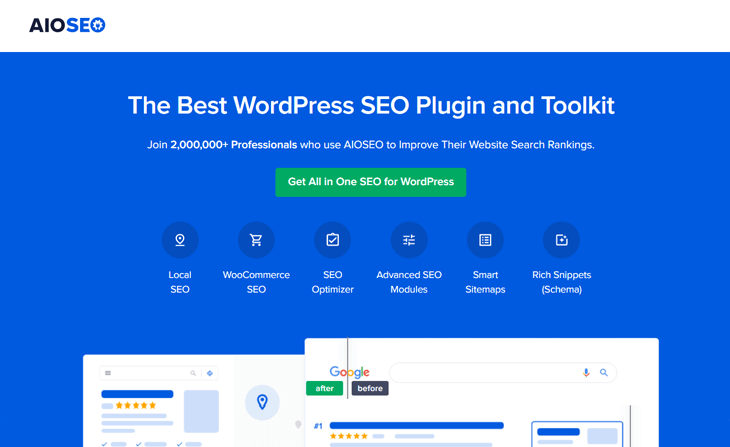
AIOSEO is the original WordPress SEO plugin, trusted by over 3 million smart website owners.
Instead of forcing you to log into 5 different expensive platforms, AIOSEO brings enterprise-level SEO automation directly into your WordPress dashboard. It consolidates your workflow, saves you money, and handles many technical SEO tasks automatically.
Let me show you how.
How to Automate SEO in WordPress (10 Workflows)
Here are 10 core SEO tasks you can automate right now using AIOSEO, without leaving WordPress.
1. Streamline Your Internal Linking
Internal links are hyperlinks that connect different pages of your website. They help Google understand the structure of your website and pass authority to your most important pages.
They also guide users deeper into your website, which keeps them reading and reduces your bounce rate. (This isn't a direct Google ranking factor, but it is important for user engagement, which influences rankings.)
- The Manual Way: Searching your own website for relevant phrases, highlighting the text, finding the URL of the old post, and pasting the link.
- The Automated Way: Using AIOSEO’s Link Assistant.
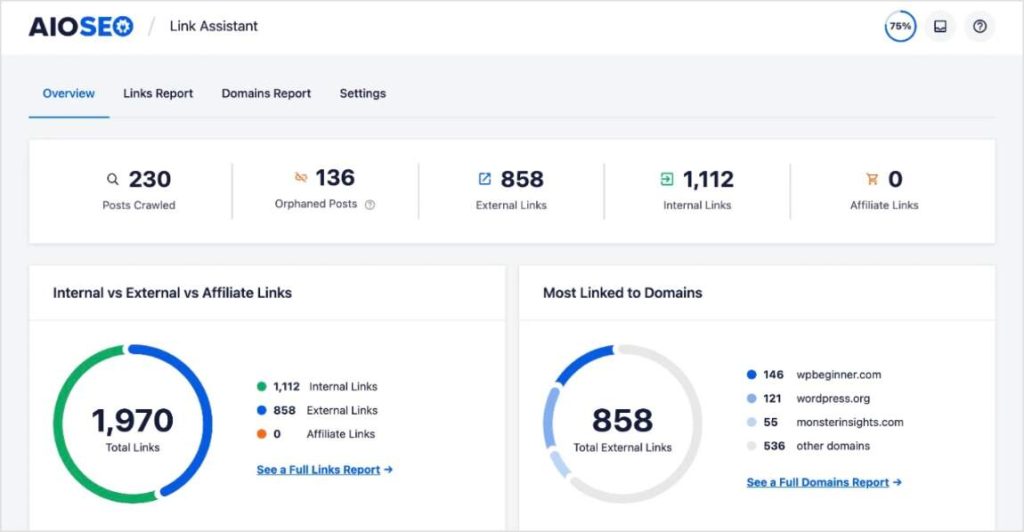
Link Assistant automatically scans your entire website and generates several reports of your links.
It helps you discover linking opportunities, orphan pages (URLs with no links pointing to them), and your linking domains.
However, my favorite feature of Link Assistant is its Link Suggestions.
When you’re writing a post or page, Link Assistant provides internal linking recommendations right inside the WordPress editor.
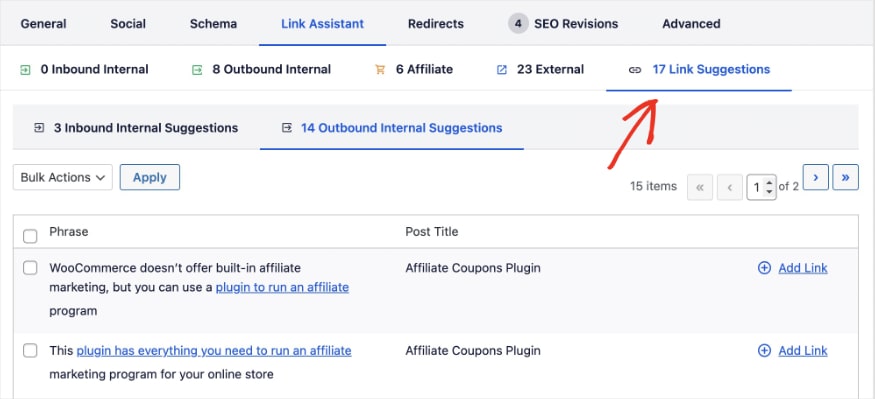
You can add these internal links with a single click, right from the report. No searching or copy-pasting required. It even provides suggested anchor text, but you can always change it.
2. Generate Meta Titles & Descriptions Instantly
Every indexable page on your site needs a unique SEO title and meta description.
In Google, these elements appear in search results as a blue hyperlink (SEO title) and preview or summary of the content (meta description).
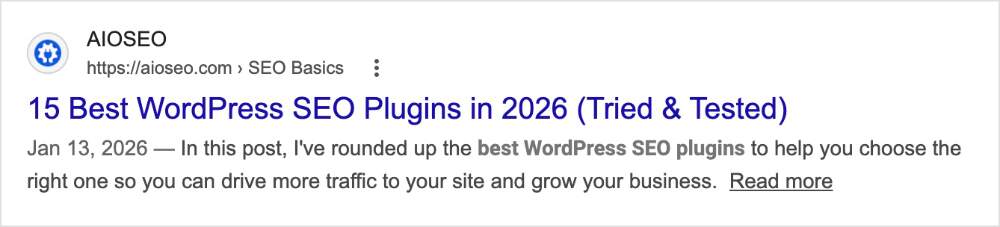
This text is extremely important for your organic traffic. A strong title and description increases your organic click-through rate (CTR), bringing more visitors to your site.
- The Manual Way: Writing these manually takes a lot of creative energy, especially if you produce a lot of content.
- The Automated Way: You can use AIOSEO’s AI Content Generator to write them for you.

By clicking the AI icon in the AIOSEO settings below your post, the plugin will automatically generate 5 optimized titles and descriptions based on your content. You just click the one you like best.

Pro Tip: You can also use smart tags to automate future updates. For example, if you use the #current_year tag in your title (e.g., “Best SEO Tips in 2026”), AIOSEO will automatically update the year on January 1st. You never have to manually update dates again!
3. Catch Broken Links & Set Up Automatic Redirects
If you change the URL slug of a published post or delete a page, you will create a broken link (a 404 error). This frustrates users and damages your Google rankings.
- The Manual Way: Keeping a spreadsheet of deleted URLs, logging into your server, and manually writing code in your .htaccess file.
- The Automated Way: AIOSEO’s Redirection Manager watches your site like a hawk.
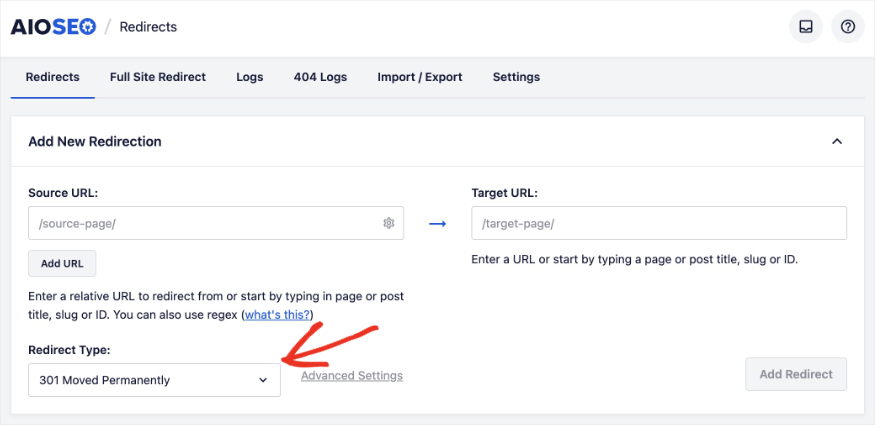
If you ever change a URL, AIOSEO instantly detects it and pops up a notification asking if you want to redirect the old URL to the new one.

Once you click “Add Redirect,” it will ask you the redirect type you want it to implement. (A 301 redirect is the most common. It tells search engine crawlers that you’re moving the content permanently.)
4. Put Your XML Sitemaps on Autopilot
An XML sitemap is a file that lists all the important pages on your website so Google can find and index them quickly. If you add a new product or publish a new blog post, Google needs to know about it. (The sooner it does, the sooner you can start ranking.)
- The Manual Way: Generating an XML file using an external website, logging into your server via FTP to upload the file, and then manually logging into Google Search Console to submit it. You would have to do this every single time you publish or update a post.
- The Automated Way: Using AIOSEO's built-in Sitemaps module.

With AIOSEO, your sitemaps are completely automated.
The moment you hit “Publish” on a new post, AIOSEO automatically updates your XML sitemap and instantly “pings” Google and Bing to let them know new content is available.
You literally don't have to lift a finger.
Pro Tip: You can also create several other sitemaps types using AIOSEO, including:
5. Track Keyword Ranks Without Leaving WordPress
You can’t improve what you don’t know. That’s why it’s critical to understand where you website ranks on Google for specific keywords.
Unfortunately, manually typing keywords into Google and counting down the results is a massive waste of time. (I wouldn’t even attempt this method, unless you’re confident you’re ranking in the top 10.)
- The Manual Way: Many businesses pay $100+ a month for external rank tracking tools to get this data.
- The Automated Way: Use AIOSEO’s Search Statistics module.
Search Statistics is a WordPress Google Search Console integration. It pulls your GSC ranking data directly into your WordPress dashboard.
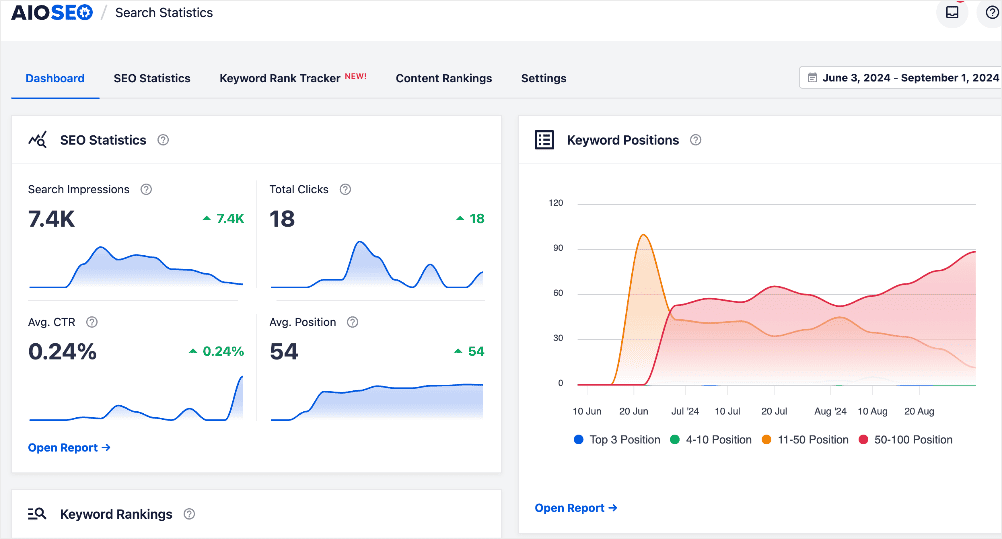
You can add the specific keywords you want to track (or import them), and AIOSEO will automatically monitor their position, clicks, and impressions.
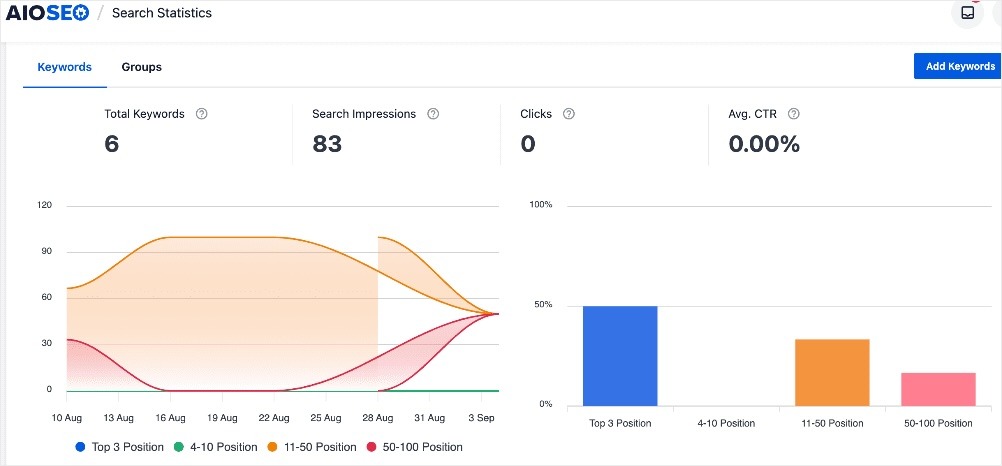
You can also analyze individual keywords and see how your rankings are trending over time with the “Position History” graph.
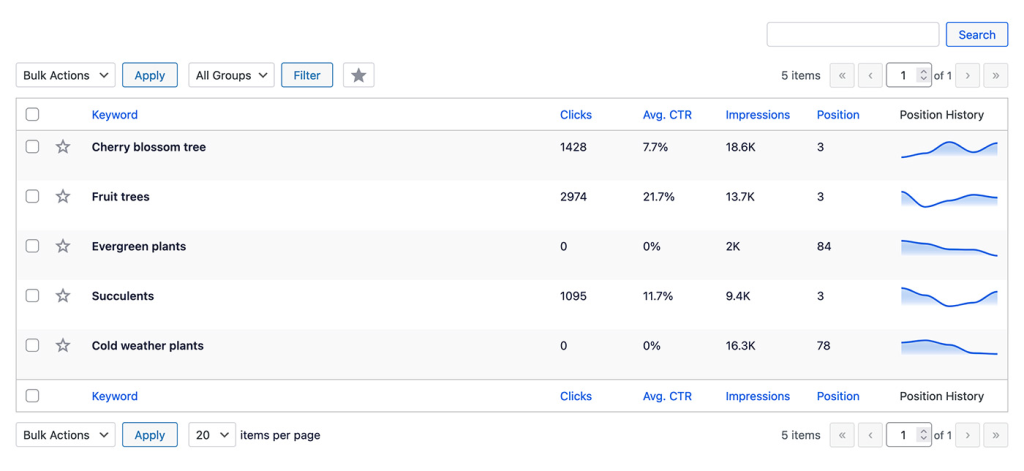
This GSC integration is another one of my favorite AIOSEO features.
Any tool that helps me stay in the tool instead of having to open another tab or platform, I appreciate. Every second counts, especially when you’re writing a lot of content or doing intensive strategy research.
6. Perform Instant SEO Health Checks
How do you know if your website has technical errors, missing meta tags, or slow-loading pages?
An SEO audit analyzes all facets of your website’s performance and optimization. The goal is to identify opportunities for improvement of your SEO strategy.
- The Manual Way: Clicking through every single page on your site, inspecting the source code, testing links one by one, or paying hundreds of dollars a year for a complicated third-party crawler tool.
- The Automated Way: Using AIOSEO’s built-in SEO Audit tool.
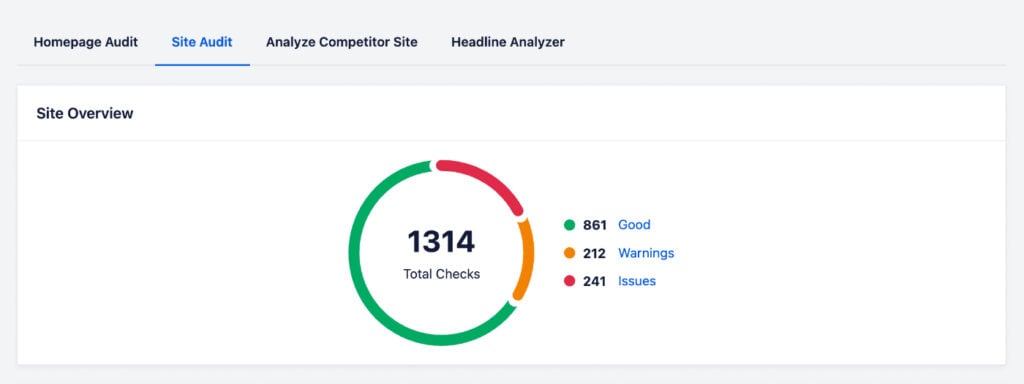
The tool automatically scans your entire website and grades your overall SEO health.
You get an SEO audit checklist that highlights exactly what critical errors need fixing (like missing alt text or broken links). It also provides feedback on how to solve them.
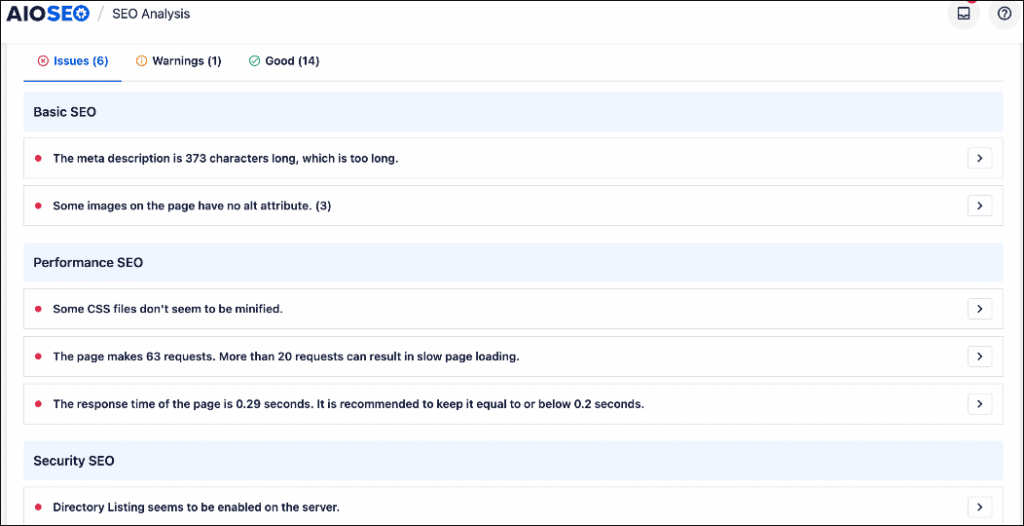
To see this feedback, all you have to do is expand the specific issue you’re trying to fix. I also really like how it links to exactly where you need to go in WordPress to make the change.
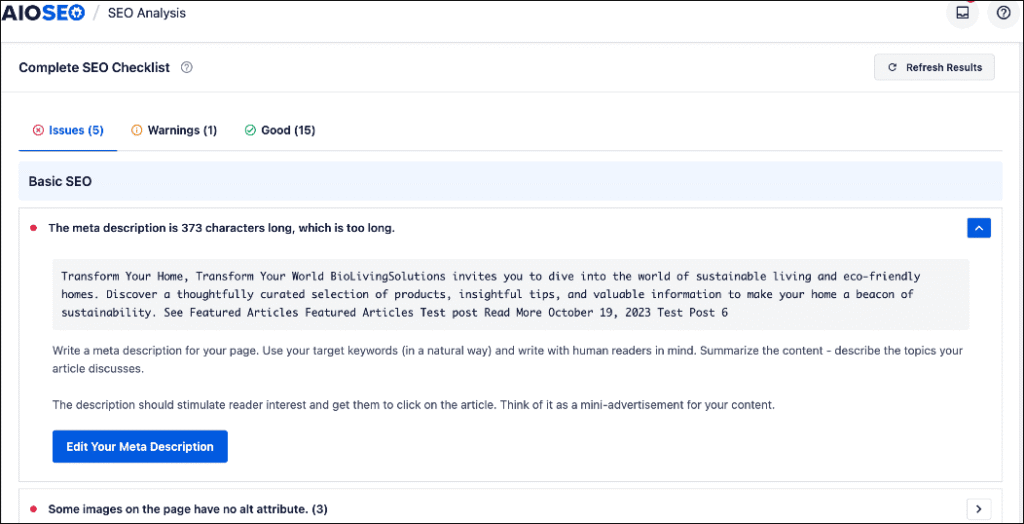
Ultimately, it’s a super beginner-friendly way to automate site audits in WordPress without having to pay for a third-party tool.
7. Optimize Image SEO in the Background
Search engines can't “see” images. They rely on image alt text and title attributes to understand what the image is about. Adding this text to dozens of images per blog post is incredibly tedious. (And one of my personal least favorite things to do for SEO.)
- The Manual Way: Clicking on every single image in your media library and manually typing out the alt text and title attributes one by one.
- The Automated Way: Using the AIOSEO Image SEO feature to set global rules.
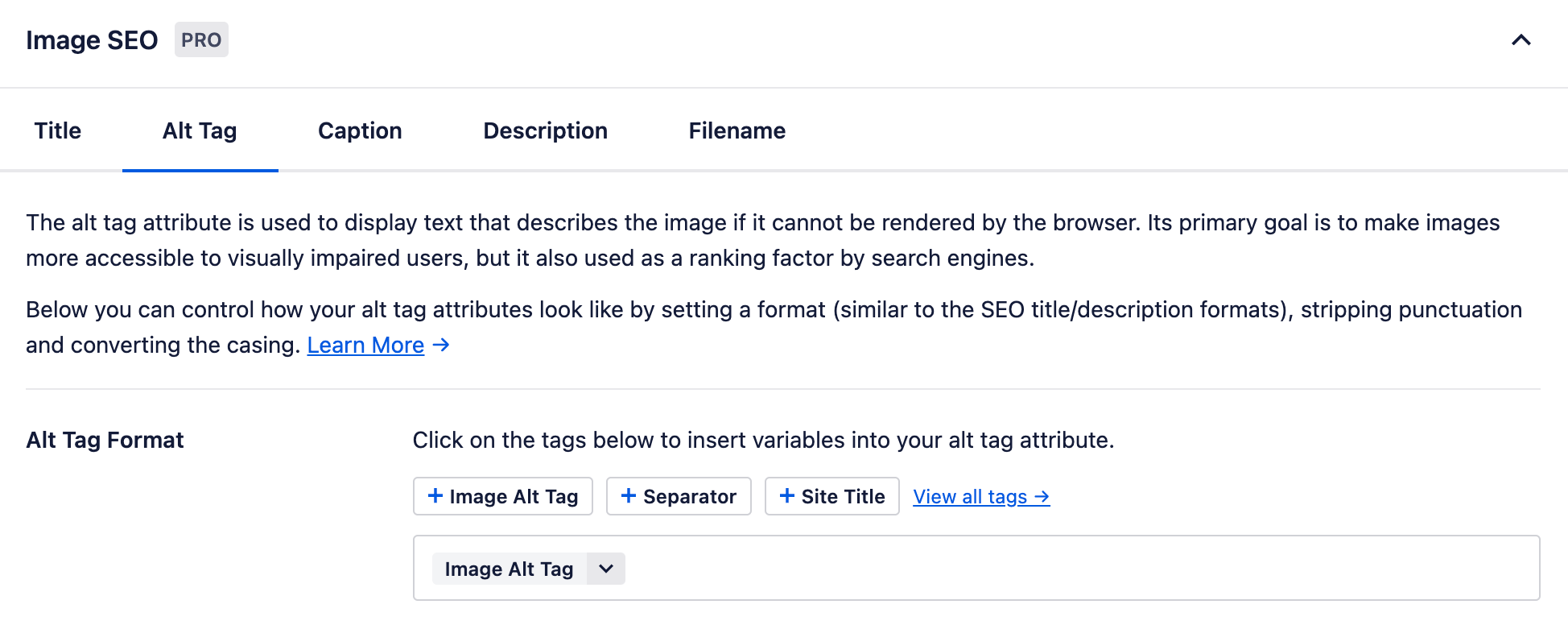
Remember those smart tags I talked about earlier when writing SEO titles and meta descriptions?
Well, you can use these dynamic tags to automate your image SEO too. You can customize your smart tags for:
- Image titles
- Alt text
- Captions
- Descriptions
- Filenames
Then, when you upload an image, the SEO data is filled out instantly in the background.
Example: You can tell AIOSEO to automatically generate the alt text based on the image's original filename or the title of the blog post. When you upload the image, the plugin will use this text to populate the image alt text.
To learn more, see how to use the image SEO features in AIOSEO.
8. Get Automated SEO Reports via Email
SEO reporting is vital for seeing if your strategy is actually working. You need to know which pages are gaining traffic and which ones are losing ground.
- The Manual Way: Building custom reports in external tools takes hours of configuration and manual analysis.
- The Automated Way: Let AIOSEO email SEO reports directly to your inbox.

Under your General Settings, you can enable Email Reports. AIOSEO will automatically send you (and anyone else on your team) a summary of your site's performance.
You can also customize how often each user receives their report, which is convenient for larger teams.
Related Reading: How to Get Automated SEO Reports by Email
9. Speed Up Content Creation with the AI Assistant
Creating high-quality content takes hours of research, formatting, and drafting. While you should never let AI write a post entirely without human review, you can automate the majority of the writing process.
- The Manual Way: Staring at a blank screen, writing from scratch, manually coding HTML tables, or spending hours rewriting clunky paragraphs.
- The Automated Way: Using AIOSEO’s AI Assistant.

Built directly into the WordPress editor, the AI Assistant acts as your personal writing co-pilot. You can use it for:
- Instant Blog Generation: Generate a working draft based on your topic.
- Custom Prompts: Ask the AI to brainstorm ideas or write specific sections.
- Effortless Rewrites: Highlight a stiff paragraph and have the AI instantly rewrite it to flow better.
- Table Creation: Automatically generate data tables (which Google loves) in seconds.
- Language Translations: Translate your copy to reach a wider audience.
- And so much more
I love being able to leverage AI directly where I work instead of having to copy-paste from another window.
To use this feature, all you have to do is add the AIOSEO – AI Assistant block to your post or page and enter your prompt. The only limits are your imagination.

10. Generate Schema Markup Instantly
Schema markup is a special code that helps search engines understand your content. It’s what gives you those eye-catching “rich snippets” in Google, like star ratings, product availability, and FAQ drop-downs.

- The Manual Way: Writing complex JSON-LD code from scratch and running it through a validator hoping you didn't make a syntax error.
- The Automated Way: Using AIOSEO’s Schema Generator.
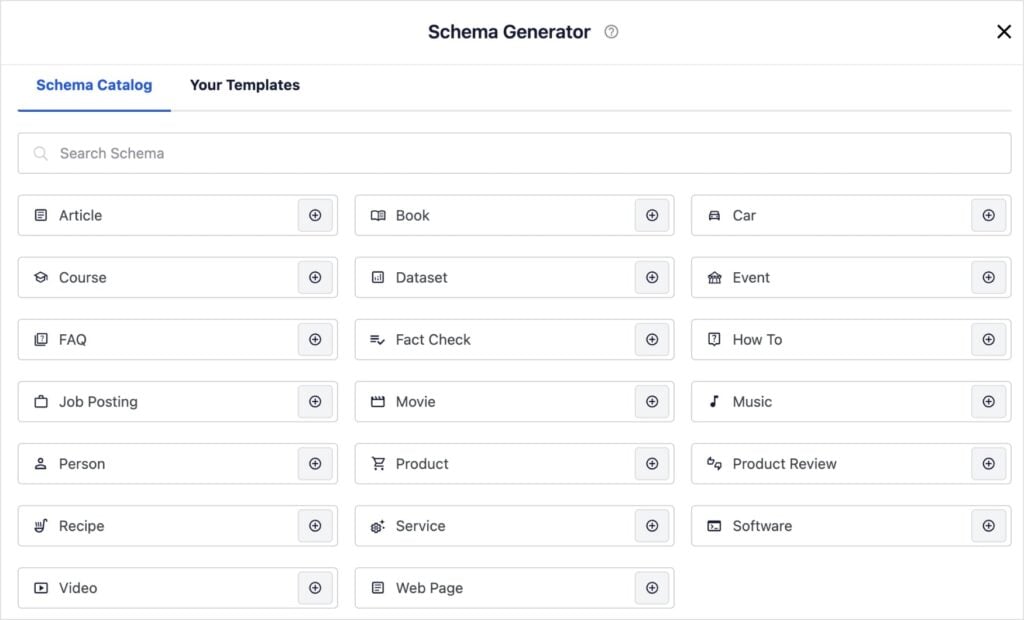
You don't need to be a developer or know how to code to add schema. AIOSEO has a massive point-and-click Schema Catalog.
Whether you’re publishing a recipe, software review, local business page, or FAQ section, you just select the template, fill in the blanks, and AIOSEO automatically writes and implements the perfect code for you.
Pro Tip: Even after 6 years in SEO, I’ve never had to write schema from scratch. There are too many SEO automation tools available to make this a manual task. I like AIOSEO for WordPress, but you can also use Google’s Structured Data Markup Helper to write it for your non-Wordpress websites.
When NOT to Automate SEO
While SEO automation is incredibly powerful, and tools like the AIOSEO AI Assistant can generate full drafts in seconds, there’s one golden rule you should always follow:
Never publish AI-generated content without a human review.
Google’s algorithm heavily prioritizes E-E-A-T (Experience, Expertise, Authoritativeness, and Trustworthiness).
AI is a fantastic co-pilot for overcoming writer's block, translating text, and doing the majority of the work. However, AI cannot share:
- Personal anecdotes
- Your first-hand experience
- Information only you know
Use automation to speed up the writing and formatting process, but always inject your own human touch, opinions, and expertise before hitting “Publish.”
Your audience (and Google) wants to connect with a real person.
Stop Working Harder, Start Working Smarter
And that does it for search engine optimization automation! As you’ve seen, you don't need a massive tech stack to automate SEO.
By leveraging AIOSEO tools already available inside WordPress, you can eliminate hours of manual labor, reduce technical errors, and get better data delivered right to your inbox.
Ready to put your organic growth on autopilot? Get started with All in One SEO today.
For more ways to improve your WordPress workflow, check out these resources:
- Automated vs. Manual SEO: Which Is Best for Small Businesses?
- The Complete WordPress SEO Checklist
- How to Track Keyword Rankings in WordPress
- Best AI SEO Tools for WordPress
If you found this article helpful, you’ll find many more SEO automation tutorials and tips on our YouTube Channel. You can also follow us on X (Twitter), LinkedIn, or Facebook to stay in the loop.
FAQs About SEO Automation
What is search engine optimization automation?
Search engine optimization automation uses software and tools to handle repetitive SEO tasks for you. This includes tracking keyword rankings, generating meta tags, finding broken links, and creating internal linking suggestions, saving you hours of manual work.
Can I automate SEO in WordPress?
Yes! You can automate most of your SEO directly inside WordPress using a plugin like All in One SEO. It handles technical tasks like generating XML sitemaps, applying schema markup, and adding 301 redirects automatically without needing external software.
Is AI good for SEO?
Yes, AI is an excellent tool for SEO when used correctly. AI can help you write optimized meta descriptions, generate content outlines, and brainstorm topics quickly. However, it's important to include your first-hand experiences, which AI can't replicate. Google and users prefer content that showcases real human experience and is genuine.
Are SEO automation tools worth it?
If you're paying hundreds of dollars a month for multiple enterprise tools you barely use, SEO automation tools might not be worth it. However, using an all-in-one WordPress plugin like AIOSEO is highly cost-effective because it automates dozens of tasks inside a single dashboard.
Disclosure: Our content is reader-supported. This means if you click on some of our links, then we may earn a commission. We only recommend products that we believe will add value to our readers.
Want to Try AIOSEO for Free?
Enter the URL of your WordPress website to install AIOSEO Lite.